
Published October 9, 2026
In this blog, Hamish Ferguson shares five practical and often overlooked ways he uses Microsoft Copilot to save time, reduce admin, and work more effectively. Drawing on his experience helping organisations adopt AI and modern work technologies, he explores real-world Copilot features and habits that go beyond prompting and deliver everyday productivity gains
I’ve used Copilot in my day-to-day work for two years, and almost every month there’s a new feature, a redesign or a new AI model, often landing within days of OpenAI or Anthropic announcing it.
When I run Copilot training sessions, the most common reaction I get is surprise that it can do something new, again. My answer is always the same: training gives you the foundations, but with a tool that moves this fast, the habits that stick come from using it on your own work, week after week. Microsoft’s own research points the same way: its 2026 Work Trend Index found that 58% of AI users say they’re producing work they couldn’t have a year ago. Here are the five I’ve found in my own day-to-day, a few of them a bit unexpected.
1: Admin with Cowork
We’ve all heard about Copilot catching us up after a day or more offline. A catch-up brief is handy, but I was still spending upwards of an hour on admin: clearing out the clutter in my inbox and manually checking new invites for clashes. So I thought, “Why not do more?” Copilot Chat is great for single-step jobs like drafting an email or a meeting invite, but Cowork is agentic: it plans the work, breaks it into steps and carries them out on my behalf, asking me to confirm before anything important happens.
For example, my inbox gets messy fast – RSVP’d meeting invites, mailing lists, and cold emails begging me to try another SaaS. They slip past the junk filter because they’re either legitimate or dressed up to look it. That’s where Cowork comes in. Drawing on Work IQ, it acts as a second junk filter that reads the semantics, not just the sender and keywords. It spots marketing, knows which invites I’ve already answered, recognises “Hey, just checking in on how your day-to-day is going?” as another sales pitch, and clears it all out. I can then have it categorise my emails and calendar by client, type and more, so my calendar’s colour-coded and I can find emails in ways a normal Outlook rule can’t.
And it’s not just my inbox – Cowork reorganised over 100 files across nested SharePoint folders for me, and all I did was check its plan and hit approve. Before training sessions, I also get it to build a whole set of demo documents in one go, consistent across every file. I can choose the model and reasoning effort for each task too, and newer, more efficient models mean my Copilot Credits stretch further than ever. (Tip: most tasks don’t need the latest and greatest model. At the time of writing, Claude Sonnet 5.5 and GPT-6.1 Sol are highly cost efficient and crazy fast!)
Try this: next time you’re back from a day offline, ask Cowork to clear the RSVP replies and cold emails from your inbox, then check its plan before approving.
2: Voice chats on the go
By now most of us have seen Copilot’s standard party tricks: recapping a meeting we missed, flagging what’s still waiting in the inbox, drafting a reply, or briefing us before the next call. Nearly all of it happens chained to a desk, but Copilot also has live voice chat, where you talk to it and it talks back in a really natural voice. You can cut in mid-sentence and throw follow-ups at it like you would with a colleague, and because it’s grounded in your Work IQ data, it’s already across your calendar, inbox and meetings.
This came in really handy on a day of back-to-back meetings where I only had a small window to grab lunch. That might have meant eating at my desk while I scrambled to get across the next meeting, but instead I headed out for lunch and talked to Copilot on the way. I asked it what was on the agenda, which client the session was for, who was attending and how many people to expect, and by the time I was back at my desk I was ready to go – and I’d actually had a break and some fresh air.
It’s just as good when I’m working from home. If I stare at a screen all day I get headaches and start to get jittery, so being able to put a load of washing on or go for a quick walk while still getting across my afternoon is a huge help. The one catch is that voice chat can’t do everything text can yet – it won’t create files or hand work off to agents, so the actual follow-up still happens back at my desk (or in Cowork!).
Try this: next time you’ve got a day of back-to-backs, take your lunch outside and ask Copilot what you need to know before your next meeting. You’ll be surprised how much you can get across on a walk.
3: Copilot as a QA pass
Everyone knows that one of the main things that can eat up time and budget is the QA and revisions loop. You send some work off to a client or to a colleague for review, and you get comments pointing out errors that you’re trying to wrap your head around – “How on Earth did I miss THAT?” Incorrect client name. Typos. A stray image that was meant to be on slide 16, but somehow made it onto slide 30.
These things happen when you’ve spent the last week staring at the same deck. Each slide, word, and object merges into one, and it becomes some sort of… PowerPoint soup. Thankfully, Copilot doesn’t have this issue. When I’m tired and just want to be done, I send the draft to Copilot. It looks over the monotonous issues that slide right past: spellcheck, layouts, and can compare against any other documents that inform the deck. You can have Copilot report those back to you for fixing, or, you can even get Copilot to fix it for you. (Just do a quick once-over before sending it off!)
Just keep in mind that it also only checks against what you give it, so if the brief isn’t attached, it’s guessing. I treat it as a first pass, never as the final review. This is where it’s a good idea to follow prompting best practice, and make sure you’re giving Copilot every bit of information you can. If you believe your organisation could benefit from some upskilling, you can contact us.
Try this: before your next deliverable goes out, attach the brief and ask Copilot for three things a client might question. If you’re comfortable, ask it to apply changes for you!
It’s just as good when I’m working from home. If I stare at a screen all day I get headaches and start to get jittery, so being able to put a load of washing on or go for a quick walk while still getting across my afternoon is a huge help. The one catch is that voice chat can’t do everything text can yet – it won’t create files or hand work off to agents, so the actual follow-up still happens back at my desk (or in Cowork!).
Try this: next time you’ve got a day of back-to-backs, take your lunch outside and ask Copilot what you need to know before your next meeting. You’ll be surprised how much you can get across on a walk.
4: Building small purpose-built apps
Every consultant has a handful of jobs that no app quite does. The big platforms do five hundred things, none of them exactly the one you need, so you end up back in a spreadsheet or doing it by hand. This is where I’ve had the most fun with Copilot: I describe the problem, and it builds me a small, single-purpose tool to fix it. No developer, no procurement, no three-week onboarding – just a clear description of what I need.
In my case, sometimes I need to photograph Microsoft tools in action: Viva Engage communities, Copilot chats, Teams – to name a few. In this case, often I need to hide either internal information or client information, so I built a quick app that does just that. It allows for multiple blur zones in varying levels of intensity, guides to help align, and… that’s about it. Because that’s all it has to be.
No building a mask to keep each blur inside its own area, no converting the layer to a Smart Object just so you can change the strength later, and no cluttered UI where you need to follow a YouTube tutorial on which kind of blur you need to apply (and where the button is!) And the best part? It’s free, with no waiting on a license being provisioned.
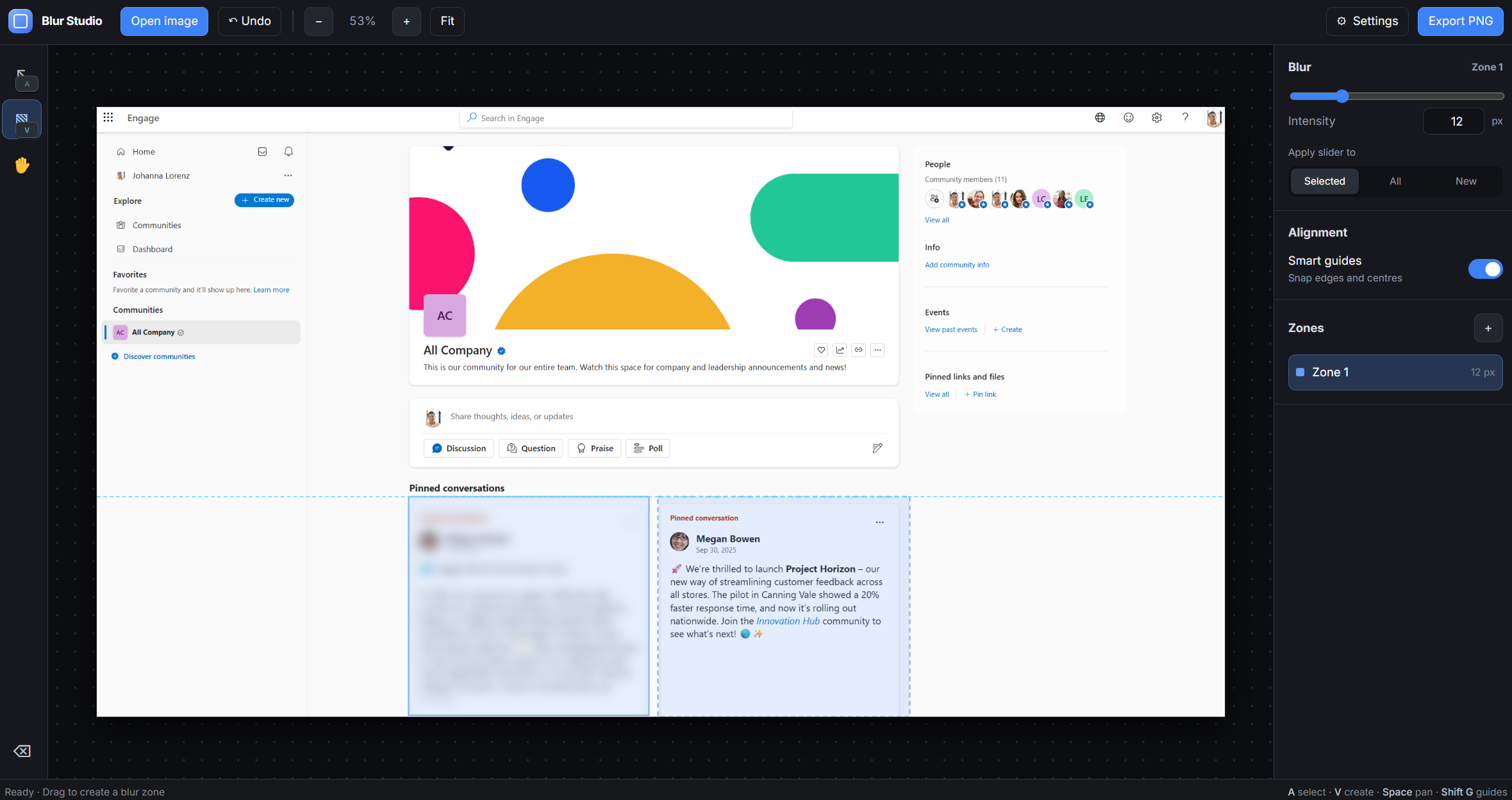
My test for whether something deserves its own tool is simple: one task, done often, where nothing off the shelf fits. It’s also getting easier. Cowork has just picked up an App skill, currently in Frontier (Microsoft’s early-access program), that builds lightweight interactive apps from a description and lets you share them with people in your organisation.
The obvious question any IT team will ask is whether this is shadow IT. These are personal productivity tools. They don’t touch sensitive systems and they don’t replace a governed solution. They speed up your workflow, or your team’s. They aren’t replacing full-stack enterprise tools.
Try this: think of a task you do by hand every week that makes you sigh, describe it to Copilot, and ask it to build a simple tool for it.
5: Copilot beyond Microsoft 365
Most people still picture Copilot as the button in Word or Outlook. I use it as the AI I bring all my work to, wherever that work happens to live. The best example was a client project where I had a couple of days to learn an e-learning authoring tool I’d never touched, then walk the client through it.
Starting from nothing, I sent Copilot screenshots and went back and forth asking how to do each thing – where’s this setting, why isn’t this working, what’s the quickest way to do that. Within a couple of days I knew it well enough to play it back to the client, which would normally take me a week or two.
The reason I used Copilot rather than whatever AI tool was open in my browser is enterprise data protection. When you’re signed in with your work account, your prompts, responses and uploaded files are covered by the same commitments that protect your email and SharePoint files, and they aren’t used to train the models. (Look for the green shield at the top of the chat!) Enterprise Data Protection also applies to Copilot Create and Notebooks, so if you’re taking notes too or generating some images for the same project, you can be confident that your data is secure.
Try this: next time you’re about to paste work into another AI tool, open Copilot instead and ask the same question. It’ll give the same – or better, since it’s got access to your work data – answer, and the data stays secure.
Final thoughts
Microsoft Copilot is changing almost every day, and each new feature is a new way that we can change our work. When a new model is integrated into Copilot, its capabilities expand. Imagine if you had an assistant that, every few months, suddenly gets a major IQ boost.
It still gets things wrong, and it’s only ever as good as the context you give it. The habits that have stuck for me are giving it proper context, checking what comes back, and treating it like a capable new colleague rather than an oracle. With a tool that changes this fast, the best way to keep up is to keep using it on your real work. Remember though, Copilot is AI, and AI makes mistakes. Always check its work before sending it off.
So pick one of these and try it this week, ideally the task you complain about most. What’s the one you’d hand over first?
About the author
Hamish Ferguson is a consultant in Engage Squared’s Transformation & Change practice, helping organisations adopt Microsoft 365, Copilot, and AI in ways that create meaningful business value. With a background in media and graphic design, he’s naturally drawn to creative problem-solving, whether that’s exploring new uses for AI, capturing moments through photography, or watching cars go in squiggly circles on a Formula One track.
Ready to get started?
Keeping up with the technology is one thing, but working out what is actually useful for your people, where to start, and how to scale it well is another. At Engage Squared, we help organisations move through that whole journey. That might mean starting small with a Copilot pilot, helping your teams build confidence around what tool, what model and when, or improving adoption so people are getting more than the basics from the licences you already have.
From there, we can help you identify the use cases worth pursuing, prepare your data and governance foundations, design and build Copilot agents and workflows, and work out where experiences like Cowork, Scout and Copilot Studio could genuinely add value.
The right starting point will look different for every organisation. The important thing is starting with the work your people are actually trying to get done, then choosing the technology that makes sense around it.
Ready to get started? Talk to our team about where Microsoft AI could make the biggest difference in your day-to-day.
Get in touch