Published Tuesday 25th November 2025
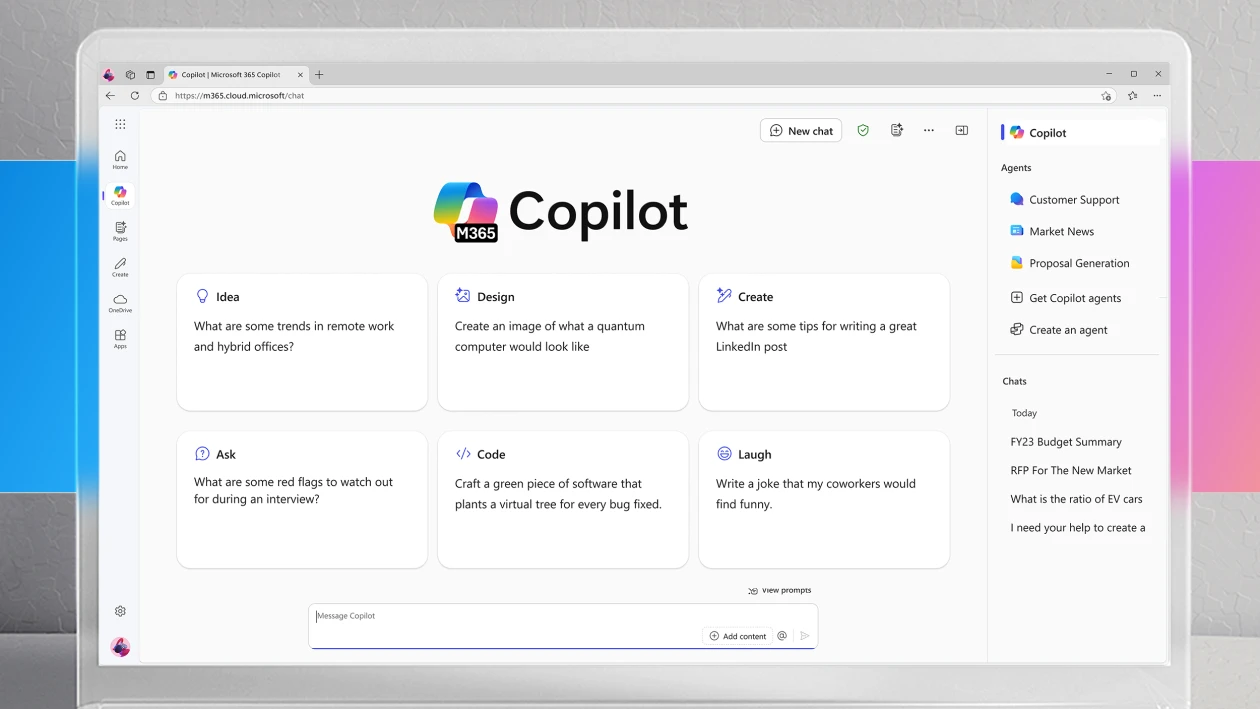
Microsoft 365 Copilot Chat is now sitting inside the Microsoft 365 apps people already use every day. For many organisations, it’s included with standard business and enterprise plans, and it’s web-grounded unless you have a paid Copilot license.
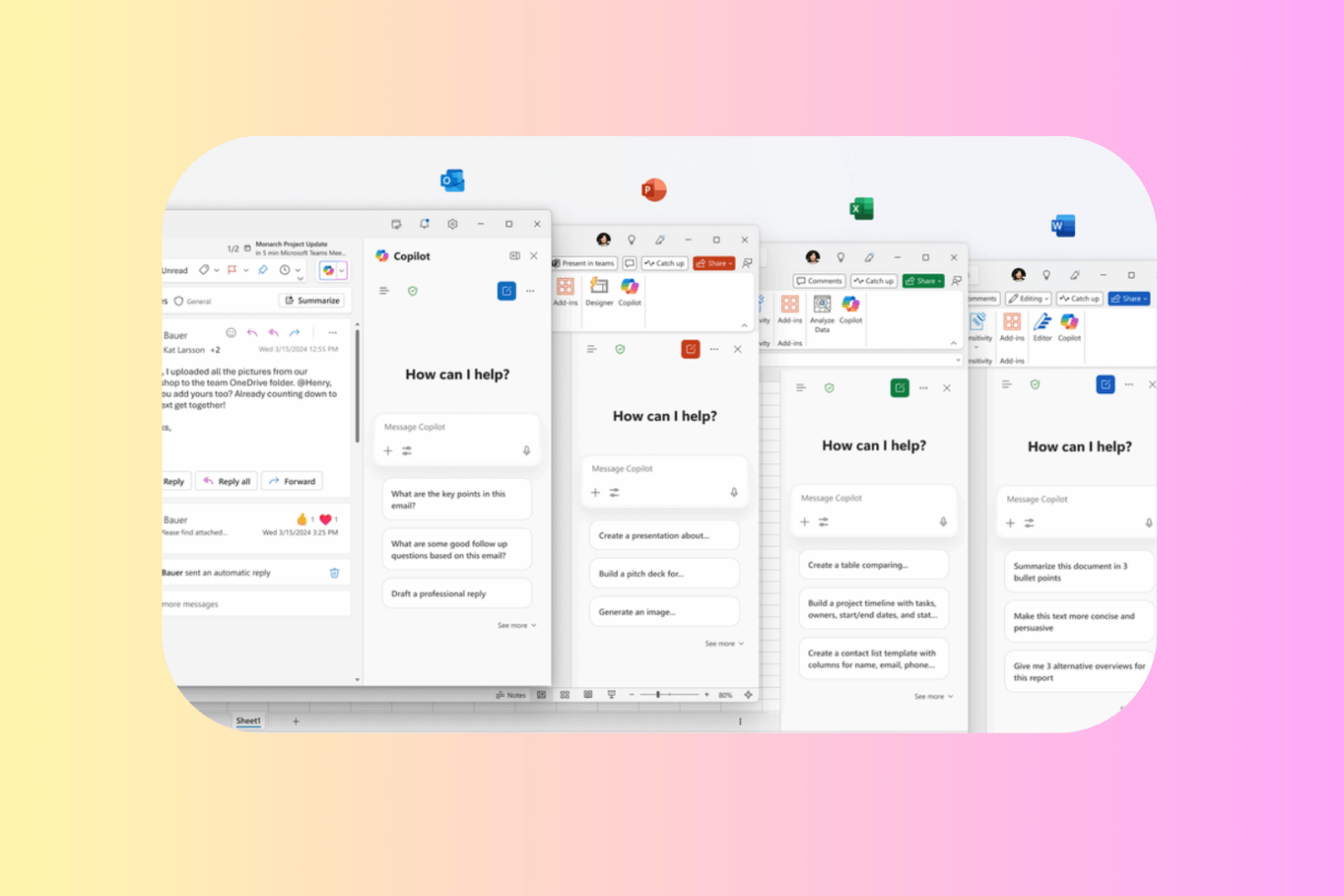
This was a major update that we’re are really excited about. When a safe, in-app option is right there in Word, Outlook, Excel, PowerPoint and Teams, people don’t have to bounce out to public tools to get help. Shadow AI shrinks because the “easy button” is finally in the right place.
Do I already have Microsoft 365 Copilot Chat?
If you’re on a Microsoft 365 business or enterprise plan, there’s a good chance you do. Look for the Copilot icon in Teams, Outlook, Word, Excel or PowerPoint. If you don’t see it yet, it may just be rolling out, but IT can pin it so it shows up for everyone.
Copilot Chat works off the web and whatever you have open (when in-app), or from a file you upload. It won’t search across your SharePoint, inbox or Teams history unless you’re licensed for Microsoft 365 Copilot.
So if you’re looking for ways to make the most of Microsoft 365 Copilot Chat, here are five ways you can adopt it in your day-to-day.
1. Summarise Word documents
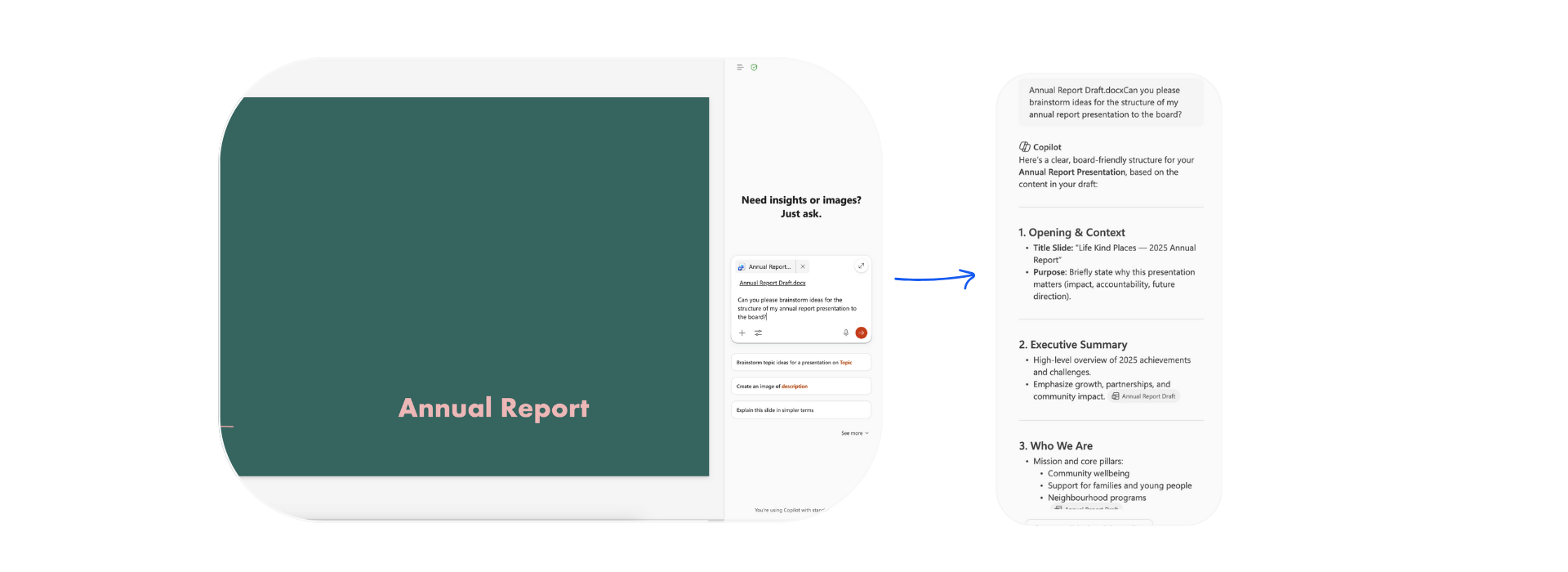
As we mentioned, Copilot Chat is now available within Microsoft apps including Word (hurrah!). Open a long Word doc (policy, report, brief, anything) and pop open Copilot in the sidebar. Ask:
- “Summarise this document in five dot points.”
- “What are the key decisions and actions?”
- “What risks or gaps should I flag?”
Copilot reads the open file and gives you a short, usable overview. If you want to use the text, you copy it into the doc yourself. The free chat pane won’t insert or rewrite on the page for you.
Once this becomes part of your day-to-day, you will find less of the “I don’t have time to read this right now” into “I know enough to move forward.”

2. Improve your writing in Word or PowerPoint using Copilot suggestions
Use Copilot Chat as a quick second set of eyes before you share your documents. Future-you (and your colleagues) will be quietly grateful.
- “What’s missing from this section?”
- “Suggest a clearer structure for this.”
- “Rewrite this paragraph to be more direct and reader-friendly.”
- “What would a board member ask after reading this?”
You still stay in control of edits. Copilot gives you options in the sidebar and you decide what to keep. Copy and paste is the workflow you will use here.
3. Summarise an Outlook email and review attachments
Copilot Chat can now summarise the email thread you have open. Try opening an email and hit Copilot Chat. Ask:
- “Summarise this email thread.”
- “What are the open questions?”
- “Draft a reply confirming next steps.”
The big thing to remember here is Copilot Chat is aware of the content of your open email thread only, it cannot go past what you have open and summarise additional items in your inbox.
Important nuance: Copilot Chat won’t reliably read attachments just because they’re sitting in the email on the free tier. If you need it to look at the file, do this:
- Download the attachment (PDF, Excel, Word, etc.).
- Upload it into the Copilot chat using Add content or drag-drop.
- Ask: “Summarise this file” or “What should I question here?”
We think this is a really big step towards reducing users forwarding sensitive attachments into unapproved AI tools. They can stay inside Microsoft 365 and still get help they need.

4. Build Excel formulas and spot trends with Copilot
If you can explain the outcome you want, Copilot Chat can help with the mechanics. Open the sheet, open the sidebar, and try:
- “I need to total Column F only where Column C = Active.”
- “What formula will flag duplicates in this list?”
- “What trend do you see in this table?”
Because it can read the active worksheet, you don’t have to paste data into chat. It’ll suggest formulas and quick insights based on what’s open. It won’t run advanced Python analysis or roam across other files if you’re on the free version, so keep it focused on the sheet in front of you.
5. Brainstorm and research inside Microsoft Teams
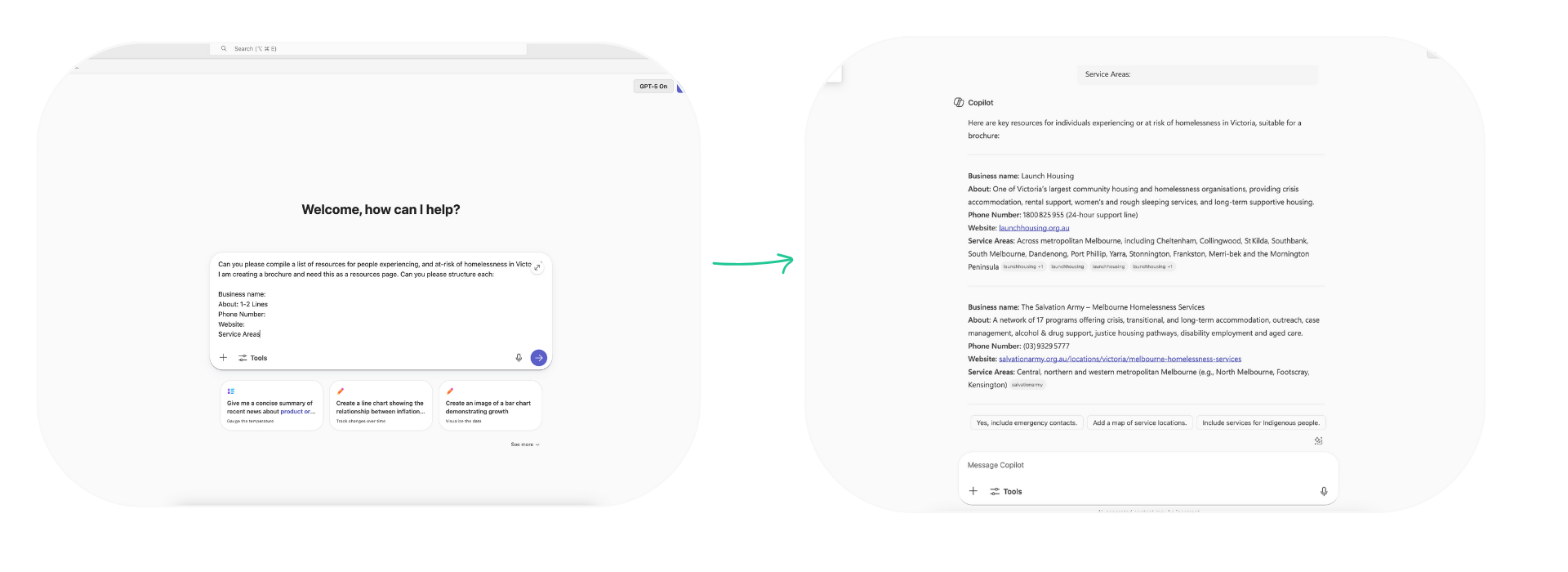
This one is about the main Copilot Chat window, aka the place you go when you want help before you even open a document.
Open Copilot Chat in Teams (or the Microsoft 365 Copilot app) and use it for quick thinking, drafting, and web-grounded answers. Try prompts like:
- “Give me a simple summary of what’s happening with [topic] right now.”
- “Help me plan a short agenda for a catch-up about [project].”
- “Draft a first version of a message to the team about [change/update].”
- “What are three options for handling [problem], with pros and cons?”
- “I need a clear explanation of [concept] for a non-technical audience.”
If you want it to work with a file, bring the file to it: upload the doc, or open it in an app and ask from the sidebar. Otherwise, think of this as your secure, built-in alternative to jumping out to public chat tools for a quick starting point.
FAQs about Copilot Chat
Microsoft 365 Copilot Chat vs Microsoft 365 Copilot: what’s the difference?
Copilot Chat is web-grounded AI chat that can work with the file you have open (or anything you paste or upload). Microsoft 365 Copilot is the paid add-on that also grounds chat in your organisation’s data (SharePoint, OneDrive, emails, Teams, meetings) and can do deeper in-app editing.
Can Copilot Chat see my other Microsoft 365 files automatically?
Not on the free version. It only uses what you have open or what you provide in the chat. If you want it to use another file, open it and ask in the sidebar, or upload it into the chat.
Like what you see?
Are you ready to build Copilot Chat adoption in your organisation? At Engage Squared, we see Copilot Chat enablement as an foundational AI activity. It helps people build AI confidence in safe ways, develop AI literacy, all whilst using tools they already trust. If you’ve turned Copilot Chat on (or you’re not sure if you have) and want to explore Copilot Chat adoption activities for your organisation, get in touch with us today. We’d love to help you shape the right approach for your teams.
About the author
Nadine Lalor is the Digital Marketing Lead at Engage Squared. With a background in web design, digital marketing, and strategic communication, she has spent the last decade shaping impactful marketing strategies and managing projects. Always seeking faster, smarter ways to get things done, Nadine loves experimenting with AI tools. Outside of work, she’s a mum to two young daughters who keep her busy with endless adventures.